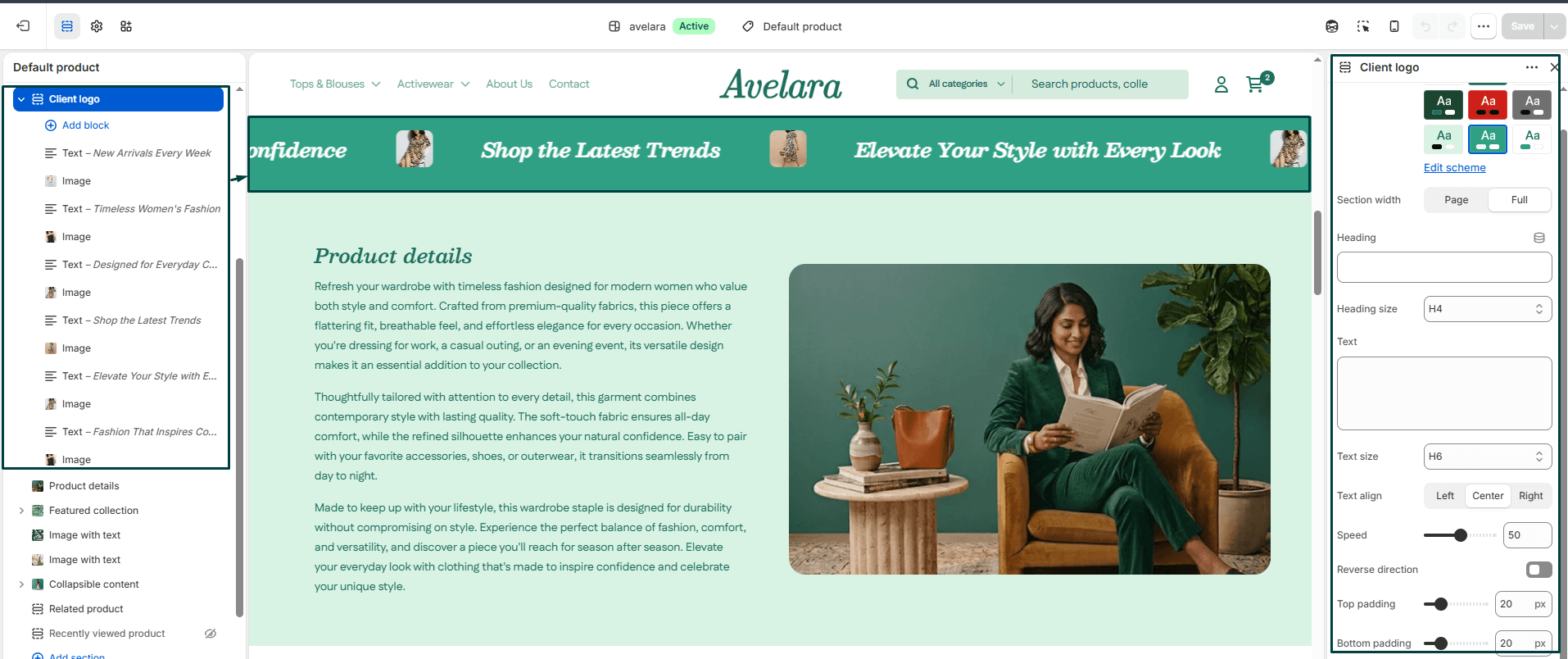
Client logo
The Client logo section displays a continuously scrolling “marquee” carousel of brand logos or promotional messages. It’s ideal for showcasing partner brands, featured collaborators, or quick promotional text (e.g., “Free Shipping Worldwide ★”) to enhance brand credibility and visual interest.
TIP
The scrolling automatically pauses whenever a customer hovers their mouse over the section, allowing them to easily click on a specific logo or read a message.
Section settings
-
- Color scheme: Select a color scheme defined in your theme. This controls the background and text color of the entire section.
- Section width: Choose how wide the section appears:
Page(constrained) orFull(edge-to-edge). - Heading & size: Add an optional main section heading (e.g., “Popular Brands”) and set its size (H1-H6).
- Text & size: Add a short descriptive paragraph below the heading and control its size.
- Text align: Align the heading and description text horizontally (
Left,Center, orRight). - Scrolling speed: Controls how fast the marquee moves (0 = paused, 100 = fastest). The default is around 11 for a smooth, readable experience.
- Reverse direction: Sets the scroll direction of the marquee. When disabled (default), the logos scroll to the Left. When enabled, they scroll to the Right.
- Top padding / Bottom padding: Add vertical spacing (in pixels) above and below the section.
Blocks
You can mix and match two different types of blocks in this section to create your scrolling marquee:
-
- Image block: Used for displaying a brand logo or icon.
- Image: Upload a transparent PNG logo.
- Link: Add a URL to make the logo clickable (e.g., linking directly to that specific brand’s collection page).
- Text block: Used for displaying a quick, punchy promotional phrase instead of an image.
- Text: Enter your short message (e.g., “30-Day Free Returns”).
- Link: Add a URL to make the text clickable.
- Image block: Used for displaying a brand logo or icon.