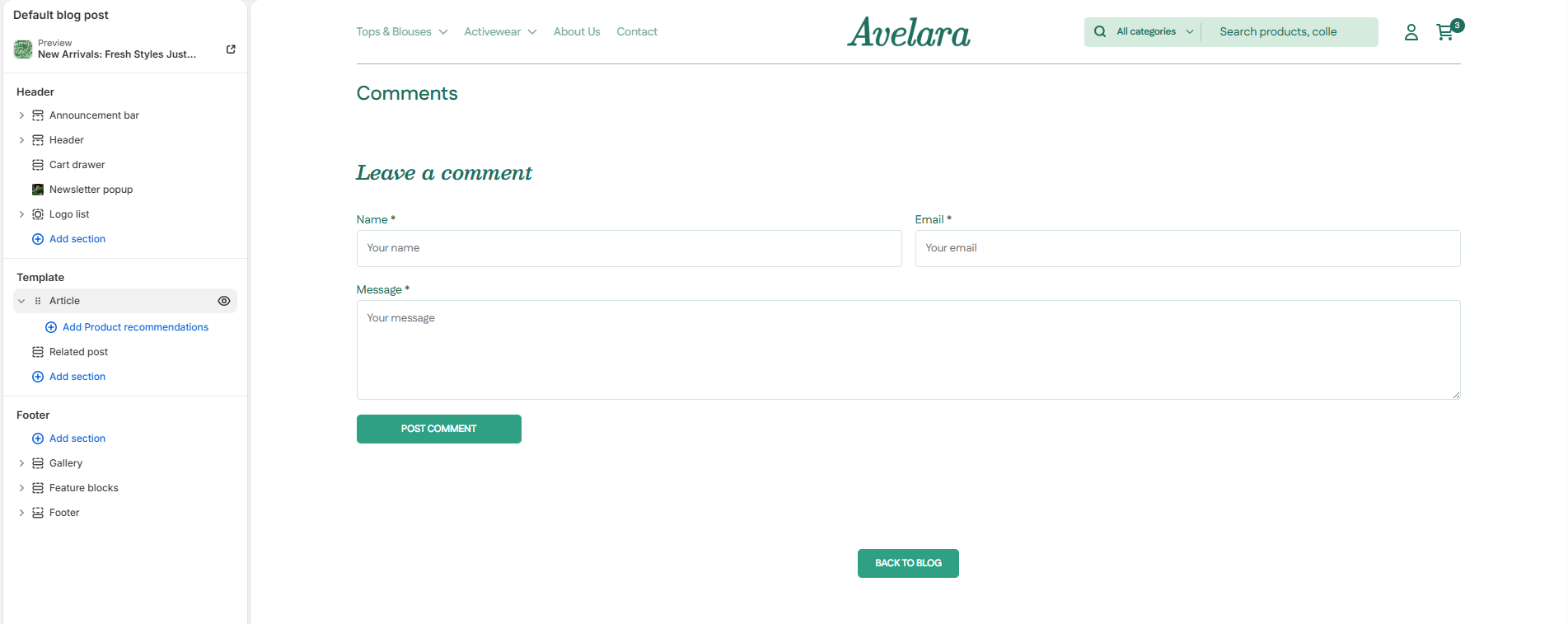
The Article section forms the core structure of your single blog post template. It displays the main content of your blog post and supports flexible layouts, a highly customizable sidebar, newsletter subscriptions, and comment functionality to maximize reader engagement.
Navigate to Sections > Article (you can view this by selecting “Default blog post” from the template dropdown at the top of your Theme Editor) to customize these settings:
Layout Options
-
- Article Layout: Choose how the featured image interacts with the text. Options include
column(stacked vertically),row(side-by-side), oroverlay(the image sits dramatically behind the title). - Image Position: If you selected the ‘row’ layout, choose whether the featured image appears on the
leftorright. - Section Width: Control the width of the article container (
page-widthorfull-width). - Color Scheme: Select the color scheme for the article background and text.
- Article Layout: Choose how the featured image interacts with the text. Options include
Article Display Settings
Control exactly what metadata is visible to your readers:
-
- Show Tags: Displays the tags associated with the article.
- Show Publish Date & Author: Toggles the visibility of the date and the author’s name near the top of the article.
- Show Title: Toggles the main H1 title of the article.
- Show Publish Info at Bottom: Enable this to show a recap of the author, date, and tags nicely formatted at the very bottom of the article content.
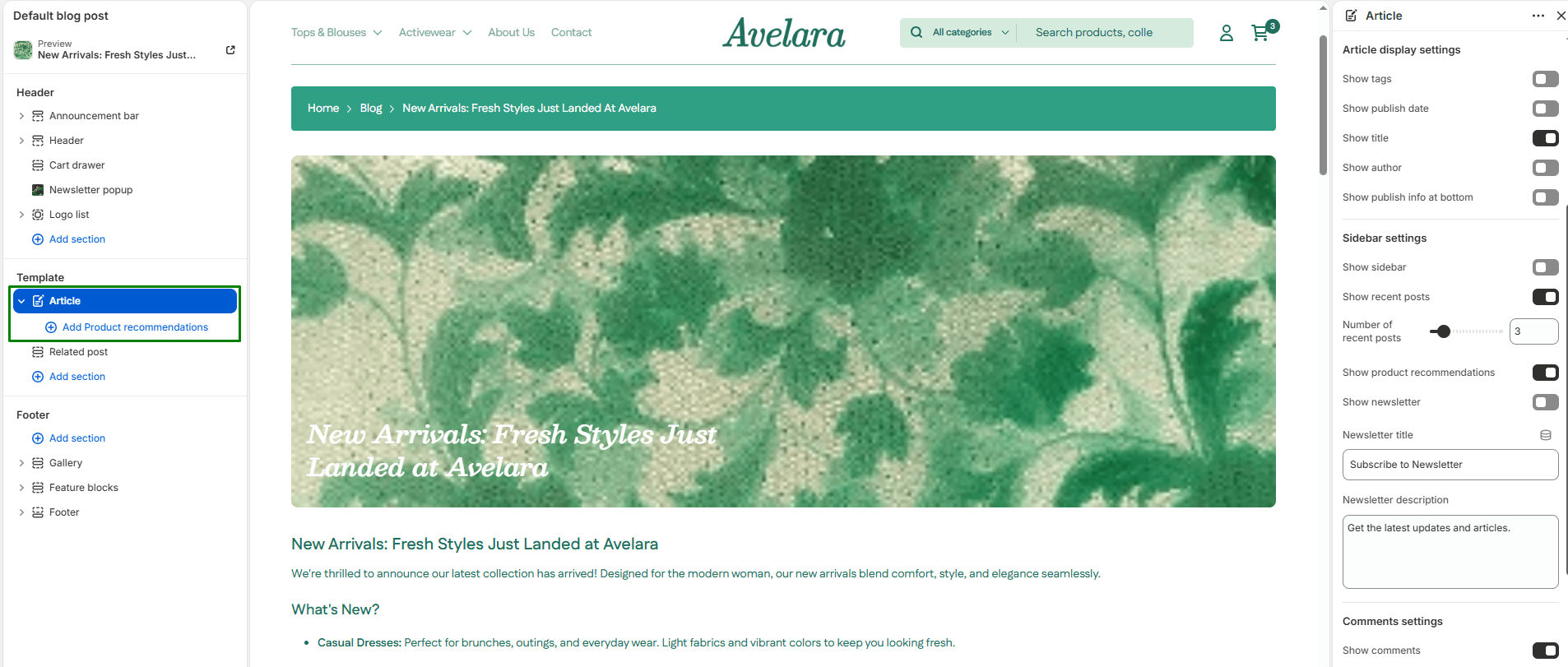
Sidebar Settings
A well-designed sidebar can drive sales and email subscriptions directly from your blog.
-
- Show Sidebar: Toggles the sidebar on or off entirely.
- Recent Posts: Toggle Show recent posts and adjust the slider to control how many recent articles appear in the sidebar.
- Show Product Recommendations: Toggle this to display the product blocks you have added to this section (see Blocks below).
- Newsletter: Enable a sidebar newsletter signup form. You can customize the Newsletter Title (e.g., “Join our list”) and Newsletter Description.
Comments & Buttons
-
- Show Comments: Toggle this ON to display existing comments and the form for users to submit new comments (Note: comments must also be enabled in your Shopify Admin under Online Store > Blog Posts > Manage Blogs).
- Button Style: Choose from your available theme button styles (Primary or Secondary) for the comment submission and ‘Back to blog’ buttons.
- Top & Bottom padding: Adjust spacing (in pixels) above and below the section.
Blocks
-
- Product: You can add up to 6 individual product blocks to this section. When the “Show Product Recommendations” sidebar setting is enabled, these handpicked products will appear in the sidebar alongside the article content—a great way to promote specific items mentioned in your writing!