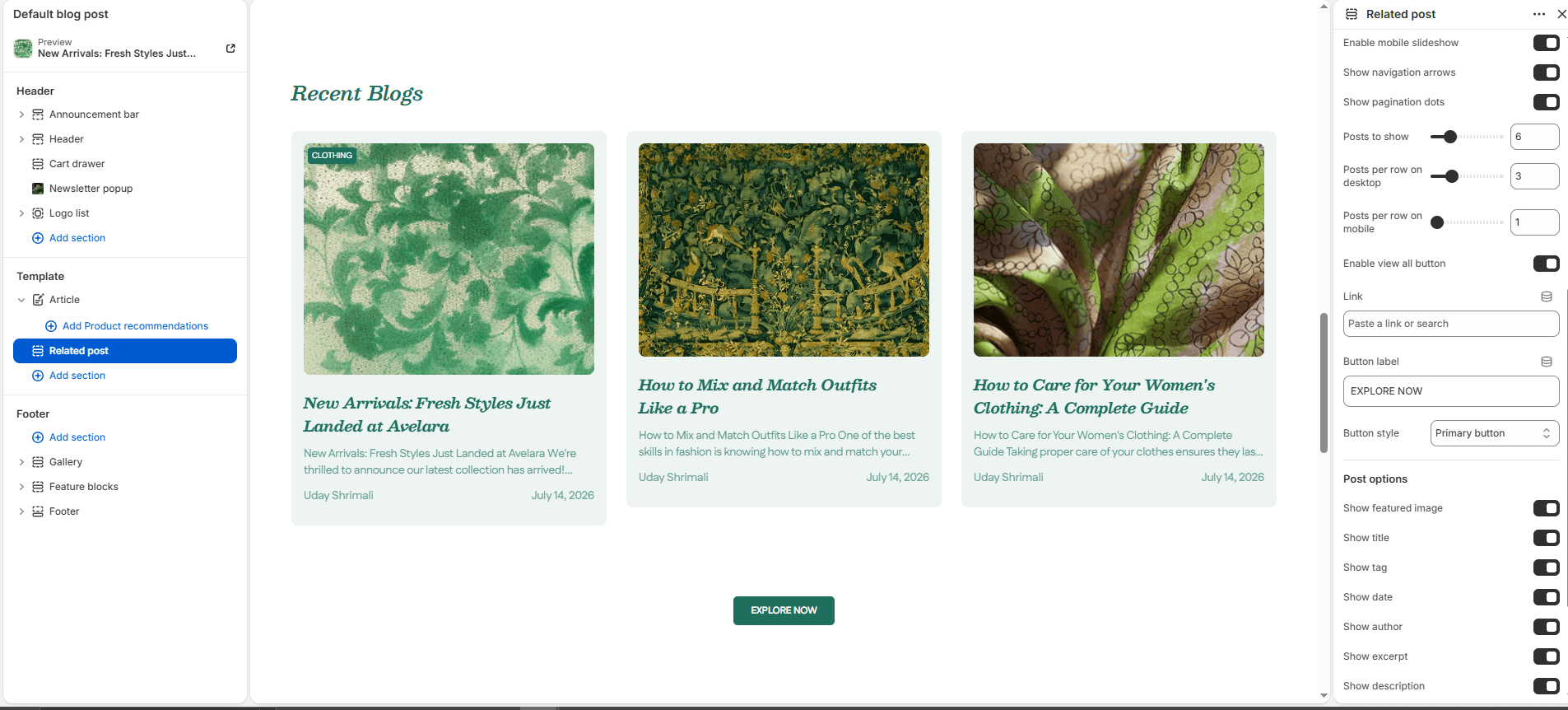
The Related Post section is typically used at the bottom of the Article (Blog Post) template to display recently published or related blog articles. By showing readers what to read next, this section significantly improves engagement and time spent on your site.
Navigate to Sections > Related post (while viewing a blog post in the Theme Editor) to customize these settings:
-
- Color scheme: Controls the background and text colors for the overall section.
- Section width: Choose how wide the section appears:
page-width(constrained to the site container) orfull-width(stretches across the full browser width). - Heading & Size: Add custom text for the section title (e.g., “Read More”) and choose the heading level (H1-H6).
- Description & Text Size: Add optional supporting text below the heading (useful for context or SEO) and control its size.
- Desktop view: Choose whether to display the related posts as a standard
gridor as an interactive swipeableslideshow. - Enable mobile slideshow: Turns the grid into a swipeable slider on mobile devices (highly recommended to save vertical space).
- Slider Controls: If using a slideshow layout, you can toggle Show navigation (arrows) and Show pagination (dots).
- Posts to Show: Controls the total maximum number of blog posts displayed in this section (up to 20).
- Posts per Row (Desktop/Mobile): Adjust the number of post cards displayed per row on desktop (2 to 6) and mobile (1 to 3).
- View All Button: Toggle the Show view all button. You can customize the button’s Link, its Label text (e.g., “View All Posts”), and select its Style class (Primary or Secondary button style).
Post Options
Just like the Main Blog section, you can control exactly what metadata is visible on the individual related post cards:
-
- Show featured image: Toggles the post’s thumbnail image.
- Show title, tag, date, & author: Toggle the visibility of the post title, category tag, publication date, and author name.
- Show excerpt/description: Choose whether to show a short summary (excerpt) or a longer text description below the title.
- Top & Bottom padding: Adjust the vertical spacing (in pixels) above and below the section.