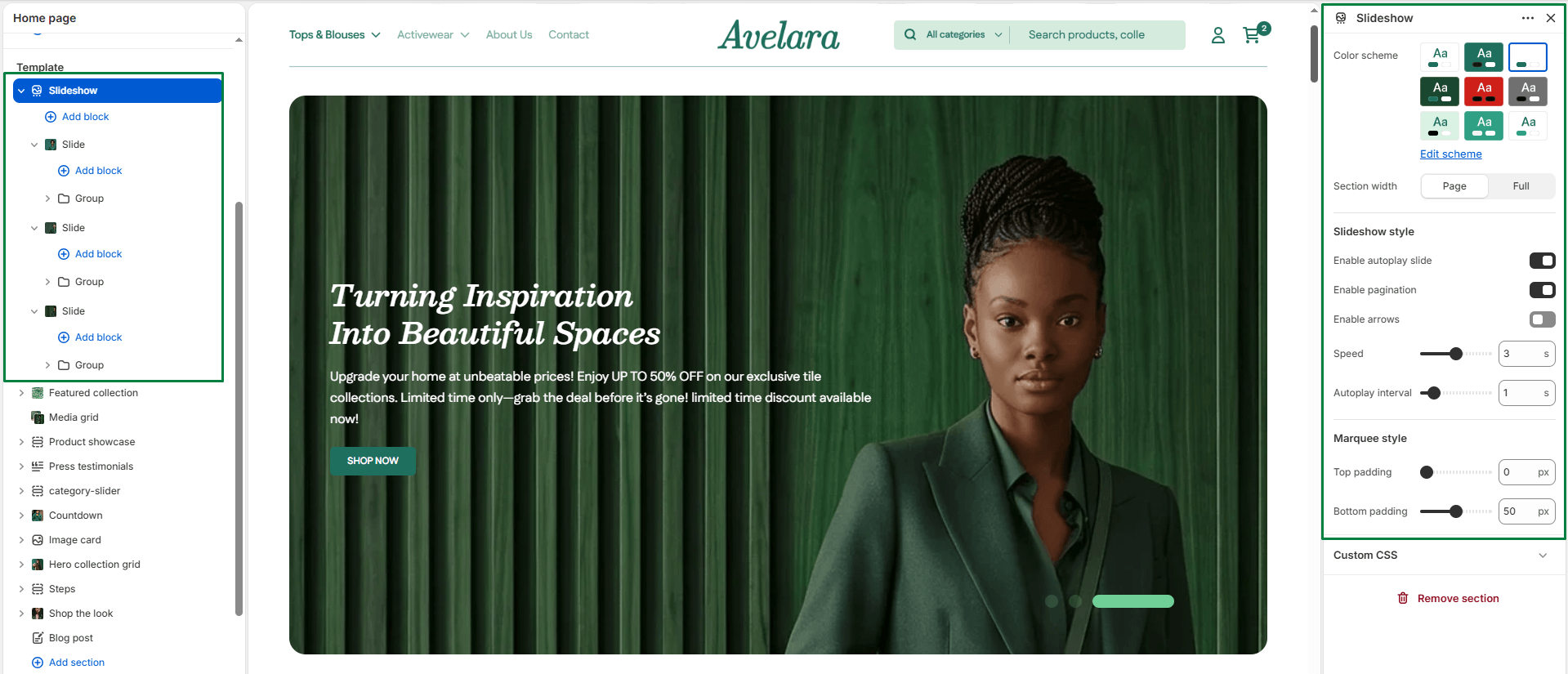
The Slideshow section displays large, immersive visual slides with text overlays and call-to-action buttons. It is commonly used as a hero section on the homepage to highlight promotions, new arrivals, or seasonal collections.
Section settings
-
- Color scheme: Controls the general color palette used for the section.
- Section width: Control how wide the banner appears:
Page: Keeps the slideshow within the standard page container width.Full: Spans edge-to-edge across the browser window for an immersive full-width experience.
- Slideshow Style:
- Autoplay: Automatically transitions between slides without user interaction.
- Pagination: Displays pagination indicators (dots) to show the current slide position.
- Arrows: Shows navigation arrows to manually switch between slides.
- Slideshow speed: Controls the animation speed when transitioning from one slide to another (in seconds).
- Interval: Sets the delay time between automatic slide transitions (in seconds).
- Top padding / Bottom padding: Add vertical spacing above and below the slideshow container.
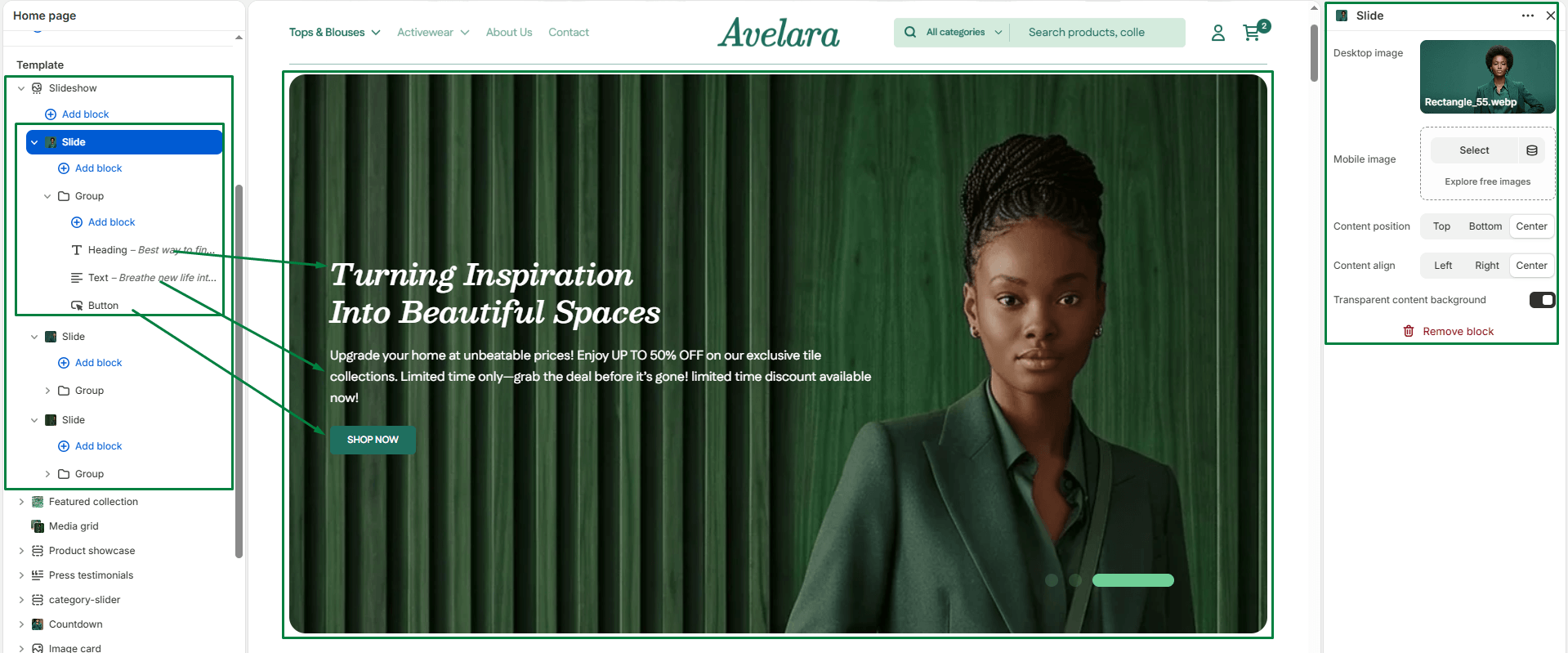
Blocks: Slide
To add content to your slideshow, you must first add a Slide block. Each slide acts as a container that holds a background image and additional inner blocks.
-
- Slide block settings:
- Desktop image: Upload a high-resolution, landscape-oriented image for large screens.
- Mobile image: Optionally upload a vertically-oriented image specifically for mobile devices. If omitted, the desktop image will scale down.
- Content position: Aligns the text content box horizontally (
flex-start,center, orflex-end). - Content align: Aligns the text content box vertically (
flex-start,center, orflex-end). - Transparent background: Enable this to make the text overlay box transparent (perfect for clean photography where the text is easy to read).
- Inner theme blocks (Inside a slide): Because each Slide acts as a block container, you can add standard Theme Blocks inside each slide to build out your content:
- Group: Use this to wrap multiple text elements together.
- Heading: Add a bold title for your slide.
- Text: Add supporting description text.
- Button: Add a call-to-action link (e.g., “Shop Now”).
- Slide block settings: