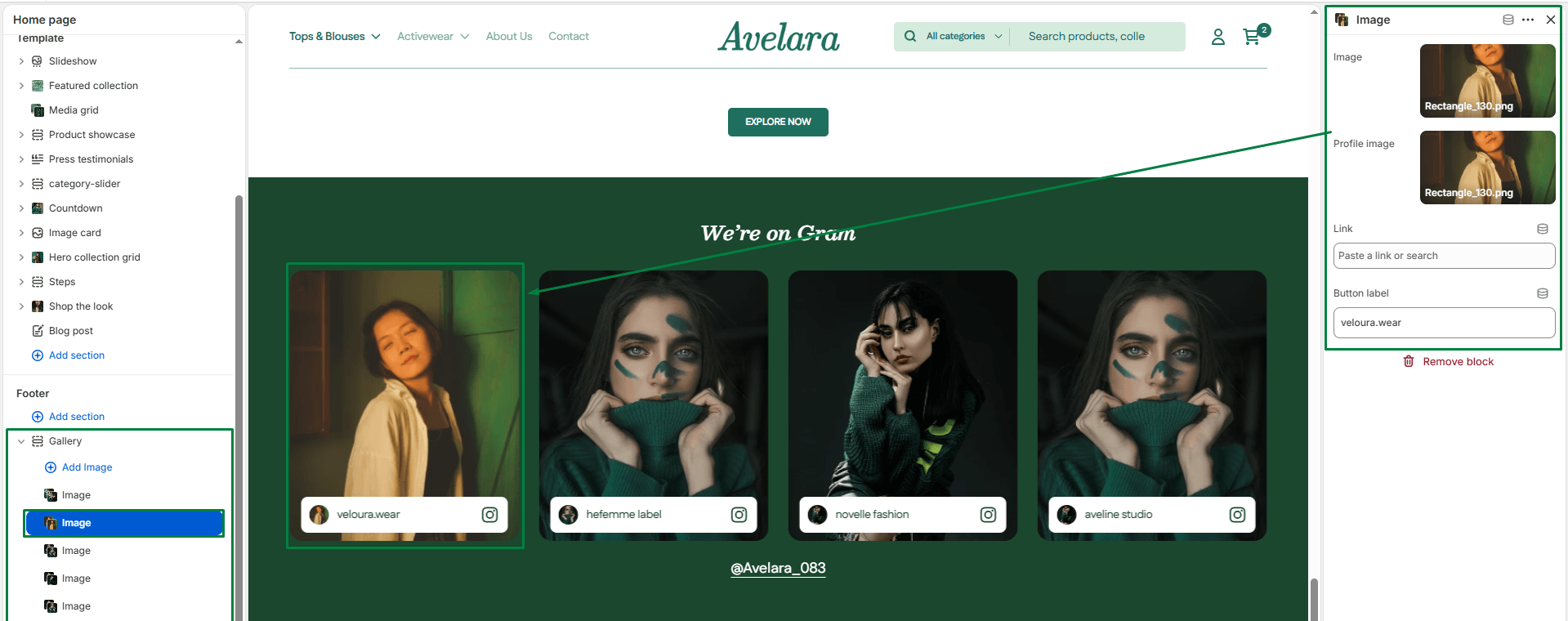
The Gallery section is beautifully designed to mimic an Instagram feed or social media grid. It’s the perfect tool for brand storytelling and encouraging store visitors to follow your social channels.
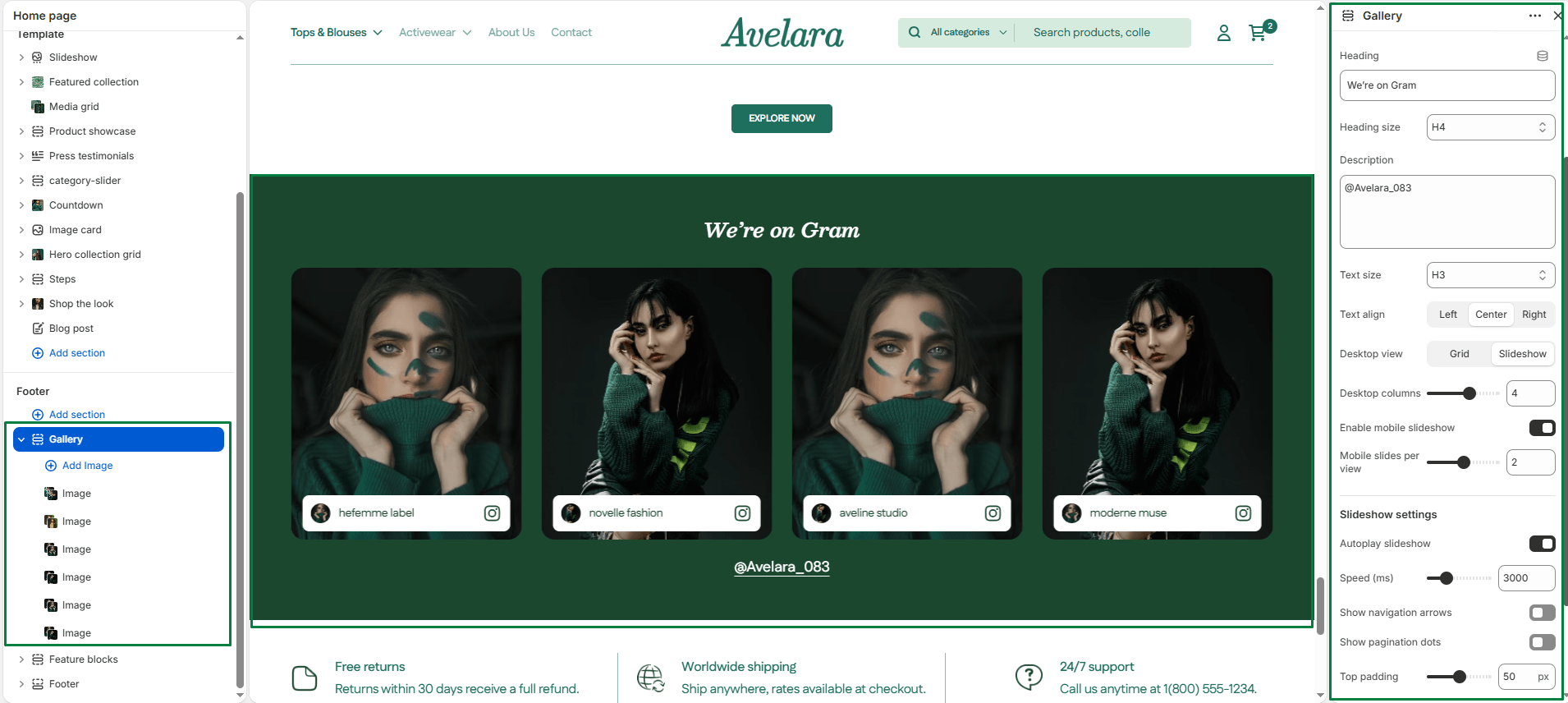
Navigate to Sections > Gallery to customize these settings:
-
- Color scheme: Select a predefined color palette to match your theme’s aesthetic.
- Section Width: Choose how wide the gallery spans:
page-width(constrained to the main content area) orfull-width(stretches edge-to-edge). - Heading: Add a section title (e.g.,
@YourBrandorFollow Us) to introduce your gallery. - Heading size: Choose the appropriate heading tag (H1-H6) to fit your design hierarchy.
- Description: Optionally add a short text description to encourage visitors to follow your Instagram.
- Text size & Align: Control the font size (H1-H6) and the alignment (Left, Center, or Right) for your heading and description text.
- Desktop view: Choose how images are displayed on desktop screens. You can select a standard
gridor an interactiveslideshow. - Desktop columns: Use the slider to set the number of columns to display on desktop (1 to 6 columns).
- Enable mobile slider: Toggle this option to activate a swipeable slideshow layout specifically for mobile devices (highly recommended for saving vertical space).
- Mobile slides per view: Set how many images (1 to 3) should be visible on the screen at one time on mobile devices.
- Autoplay slideshow: If you are using the slideshow layout, enable this to automatically rotate the images.
- Slider speed: Define the transition speed between slides (in milliseconds). Default is 3000ms (3 seconds).
- Show navigation & pagination: Toggle the display of manual arrow controls (navigation) and small dots below the slider (pagination).
- Top & Bottom padding: Adjust the vertical spacing above and below the gallery section.
Blocks
-
- Image: Each image block represents an individual “post” in your gallery feed. You can add multiple image blocks to create a visually rich grid.
- Image: Upload or select the main image to display.
- Account Image: Optionally upload a small profile picture icon that appears as an overlay (mimicking a social media profile photo).
- Link: Add the specific post link so visitors can easily click through to your social profile.
- Link Label: Define the button text (e.g.,
Follow NoworShop the Look) that appears as a hover overlay.
- Image: Each image block represents an individual “post” in your gallery feed. You can add multiple image blocks to create a visually rich grid.