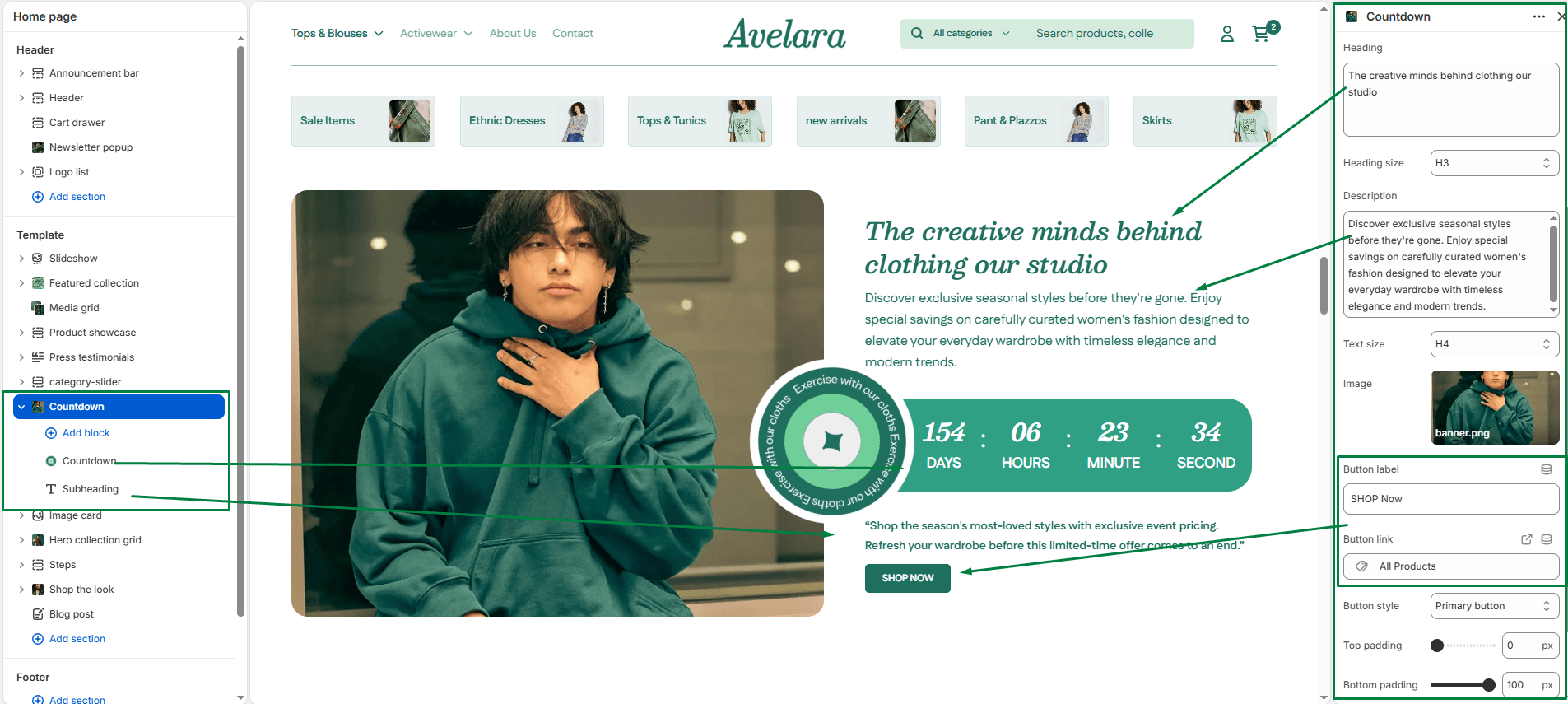
The Countdown section uses the same visually appealing dual-column layout as the Image with text section, but with a special addition: it supports adding Theme Blocks. This means you can drop an active Countdown Timer block directly into the text area to create high-converting promotional banners!
Section settings
-
- Color scheme: Choose the theme color palette for the overall section background.
- Section width: Choose whether the section is constrained to
Pagewidth or stretches acrossFullbrowser width. - Layout:
- Image position: Choose whether the image appears on the
LeftorRightside of the text on desktop screens. - Background color: Select a background color just for the text box area to create contrast.
- Image position: Choose whether the image appears on the
- Image: Upload the promotional image you want to feature alongside your countdown timer.
- Text content:
- Heading & size: Add a main promotional title (e.g., “Flash Sale Ends Soon!”) and select its size (H1-H6).
- Description & Text size: Add supporting body text to explain the offer and select its size.
- Button:
- Button label: Enter the call-to-action text (e.g., “Shop Sale”).
- Button link: Choose where the button should link to.
- Button style: Select the visual style of the button (
PrimaryorSecondary).
- Blocks: This section supports adding Theme Blocks. You must add the Countdown Timer block here to actually display the ticking timer.
- Top padding / Bottom padding: Adjust the spacing above and below the section (in pixels).