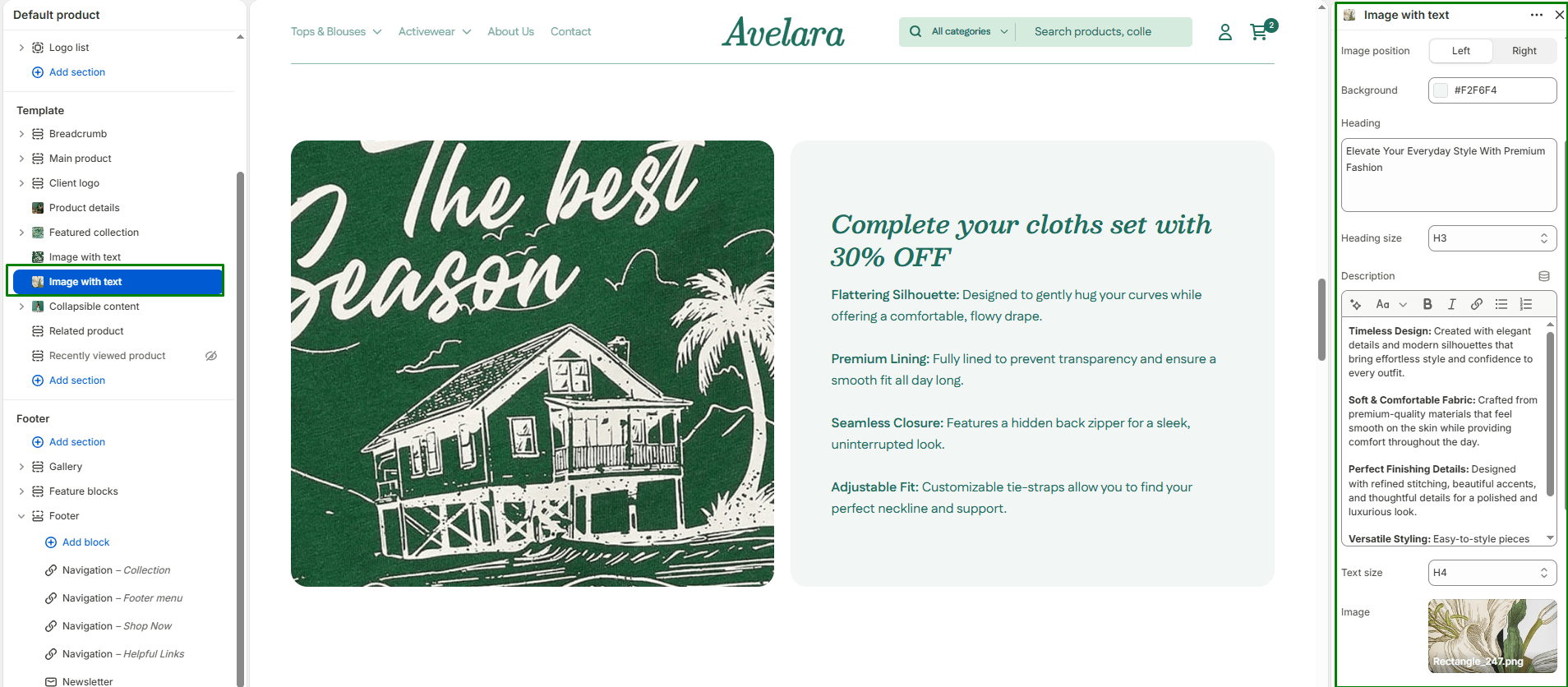
The Image with text section (sometimes referred to as an “Image Zigzag” layout) is designed to showcase dual-column content, pairing a beautiful image on one side with descriptive text on the other. It allows merchants to tell a story visually — highlighting product features, sharing brand history, or adding engaging call-to-action sections.
Section settings
-
- Color scheme: Choose the theme color palette for the overall section background.
- Section width: Choose whether the section is constrained to
Pagewidth or stretches acrossFullbrowser width. - Layout:
- Image position: Choose whether the image appears on the
LeftorRightside of the text on desktop screens. (Tip: Stack multiple of these sections and alternate the image position to create a classic “zigzag” layout!) - Background color: Specifically select a background color just for the text box area to create contrast against the main section background.
- Image position: Choose whether the image appears on the
- Image: Upload the image you want to feature alongside your text.
- Text content:
- Heading & size: Add a main title to highlight your message and select its size (H1-H6).
- Description & Text size: Add supporting body text to explain your message and select its size. Keep it concise and engaging.
- Button:
- Button label: Enter the call-to-action text (e.g., “Shop Collection”).
- Button link: Choose where the button should link to.
- Button style: Select the visual style of the button (
PrimaryorSecondary).
- Top padding / Bottom padding: Adjust the spacing above and below the section (in pixels).