The Footer Section appears at the absolute bottom of your Shopify store on every page. It is essential real estate for secondary navigation, newsletter signups, contact information, and establishing trust through payment icons.
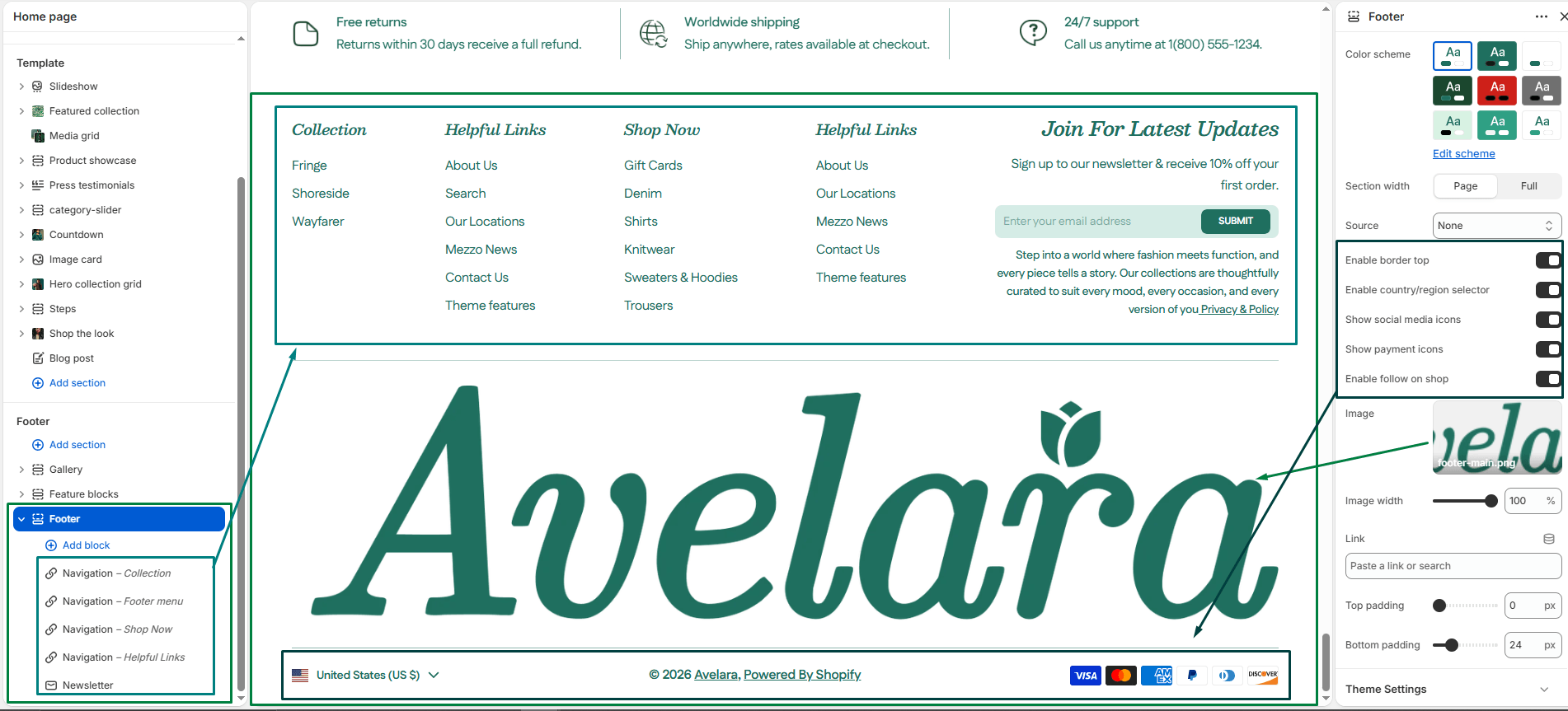
Navigate to Sections > Footer to customize these settings:
-
- Color scheme: Choose the color scheme that matches your site design. This ensures your text remains readable over your chosen background.
- Section width: Choose how wide the footer background stretches:
page-width(constrained to the main content area) orfull-width(stretches edge-to-edge). - Source (Background): Choose what type of background you want to use: Uploaded video, Image, or None (solid color).
- Video: If you chose ‘uploaded’ for your source, select the video file here. A subtle background video can make your footer highly engaging.
- Fallback image: If you selected ‘image’ as your source (or as a backup for devices that can’t play your video), upload the background image here.
- Enable border top: Adds a thin, clean divider line across the top of the footer for visual separation from the main page content.
- Enable country/region selector: Displays Shopify’s native dropdown menu in the footer for international customers to choose their country and currency.
- Show social media icons: Toggles the visibility of your social media icons (linked via your global Theme Settings).
- Show payment icons: Displays the payment method icons (Visa, PayPal, Apple Pay, etc.) supported by your store to build trust.
- Enable follow on shop: Adds a “Follow on Shop” button for customers using the Shop App.
- Logo Image: Upload an image to display your logo in the bottom area of the footer. You can also adjust the Image width slider to scale the logo, and add a Link (which defaults to your homepage).
- Top & Bottom padding: Use these sliders to control the vertical spacing above and below the footer content.
Blocks
-
- Menu: Adds a column with a list of links (like “Customer Service” or “Quick Links”). You can select the menu to display and optionally override the title text.
- Newsletter: Adds an email signup form to capture subscribers directly from the footer. You can customize the heading, add supporting text, and include a short title above your social links.
- Text: Adds a flexible text column, perfect for a short “About our store” paragraph, store hours, or direct contact information. You can adjust the heading, content, and the size of the text to match your layout.


