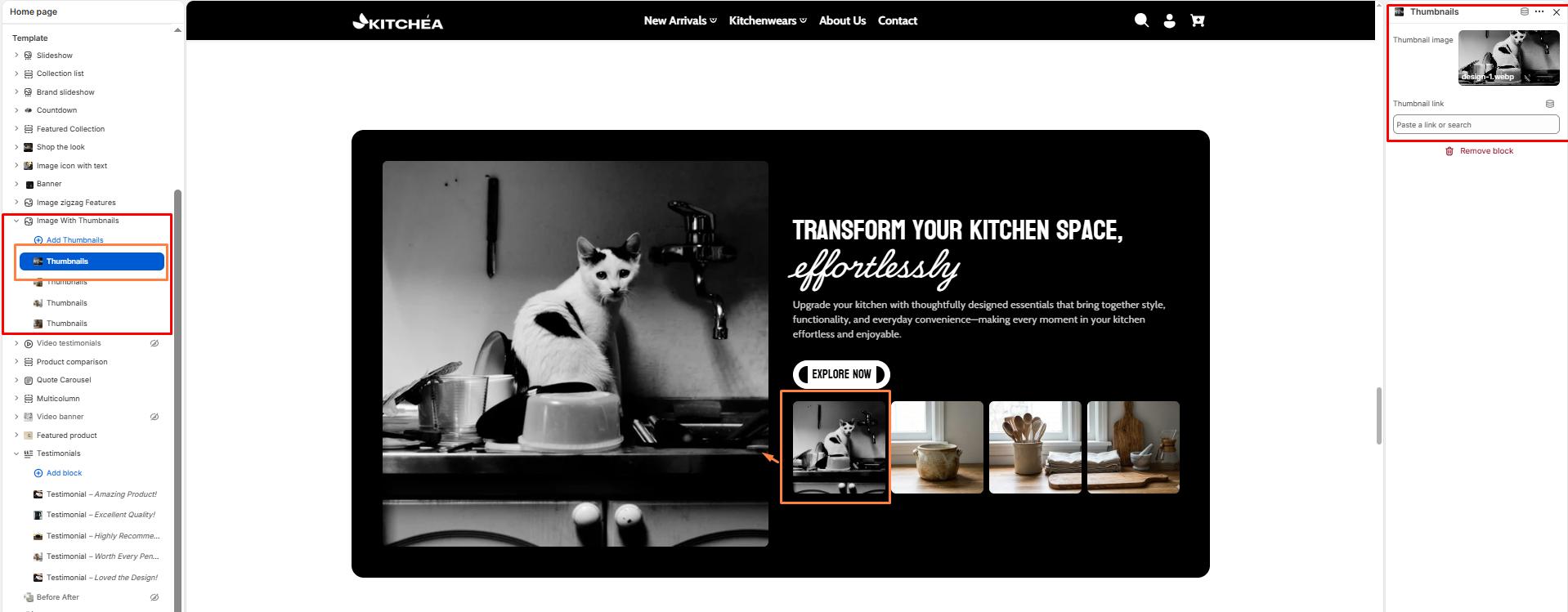
Image with Thumbnail
The Image with Thumbnail section displays a large main image on the left side with a row of clickable thumbnail images below it. When a customer clicks a thumbnail, the main image updates with a smooth animated flying transition. This section is ideal for showcasing your kitchen product collections, cookware sets, or styled kitchen photography with multiple views.
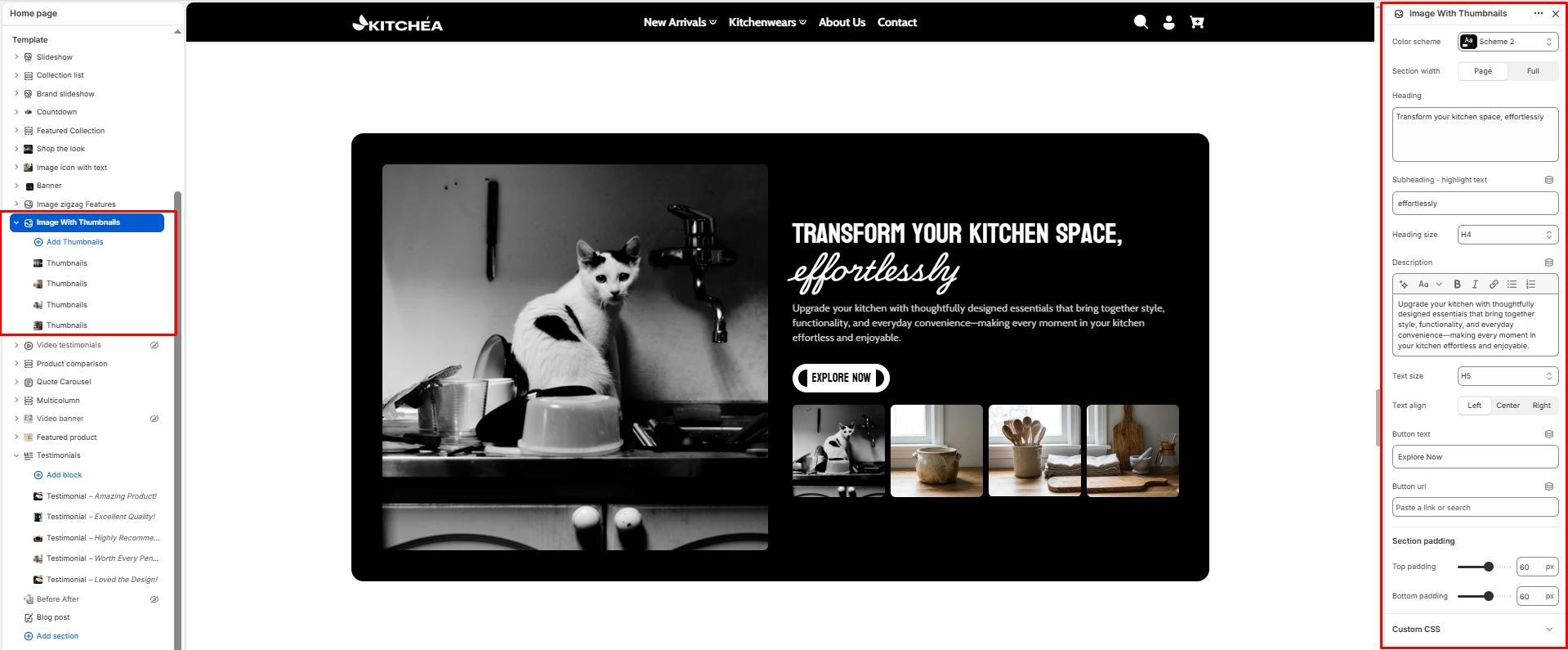
Color scheme
Sets the color scheme (background, text, etc.) for the section.
Section width
-
- Page – aligns with the site’s content width.
- Full – stretches across the full viewport width.
Heading
Add a heading text for the section.
Subheading – Highlight Word
This word will be visually highlighted using the Subheading font style, adding a decorative touch to your blog section title.
Heading size
Choose heading size (H1–H6) for the section heading.
Description/Text
In the Text box, enter the description.
Text Size
Allows choosing Text hierarchy (e.g., H1 To H6).
Button Label
Enter the text for the call-to-action button. Example: Explore Now, Shop Collection, View All.
Button Link
Add the URL the button links to, such as a collection page or product page.
Top padding
Adjust the spacing above the section (in pixels).
Bottom padding
Adjust the spacing below the section (in pixels).
Block Settings – Thumbnails
Each block adds one thumbnail image to the thumbnail strip below the main image. The first thumbnail block image is used as the default main image on load.
Thumbnail Image
Upload a kitchen product or lifestyle image to display as a thumbnail. Clicking it will animate the image into the main display area.
Thumbnail Link
Add an optional URL to link the thumbnail to a specific product or collection page when clicked.