Product Comparison
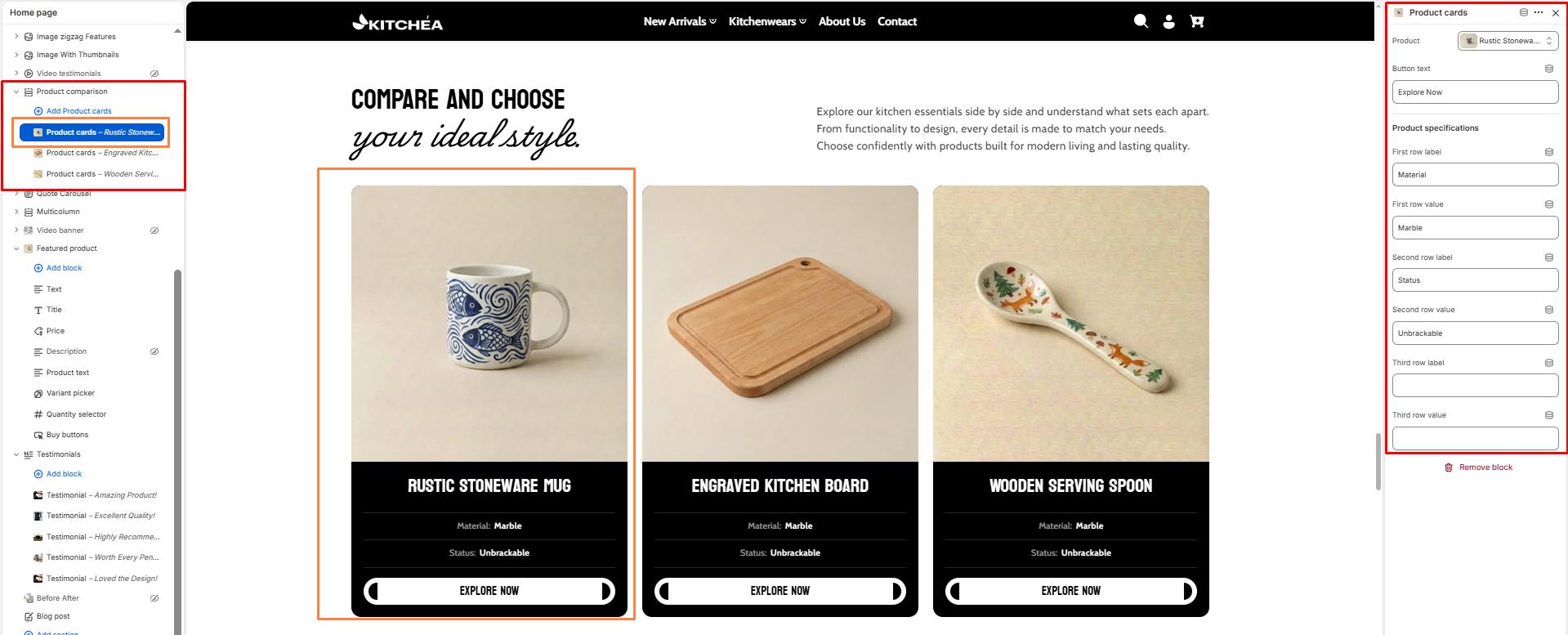
The Product Compare section allows you to display multiple kitchen products side by side with their specifications, price, and a call-to-action button. It helps customers make informed purchase decisions by comparing materials, features, and details of different kitchen products like cookware sets, knives, plates, or cups.
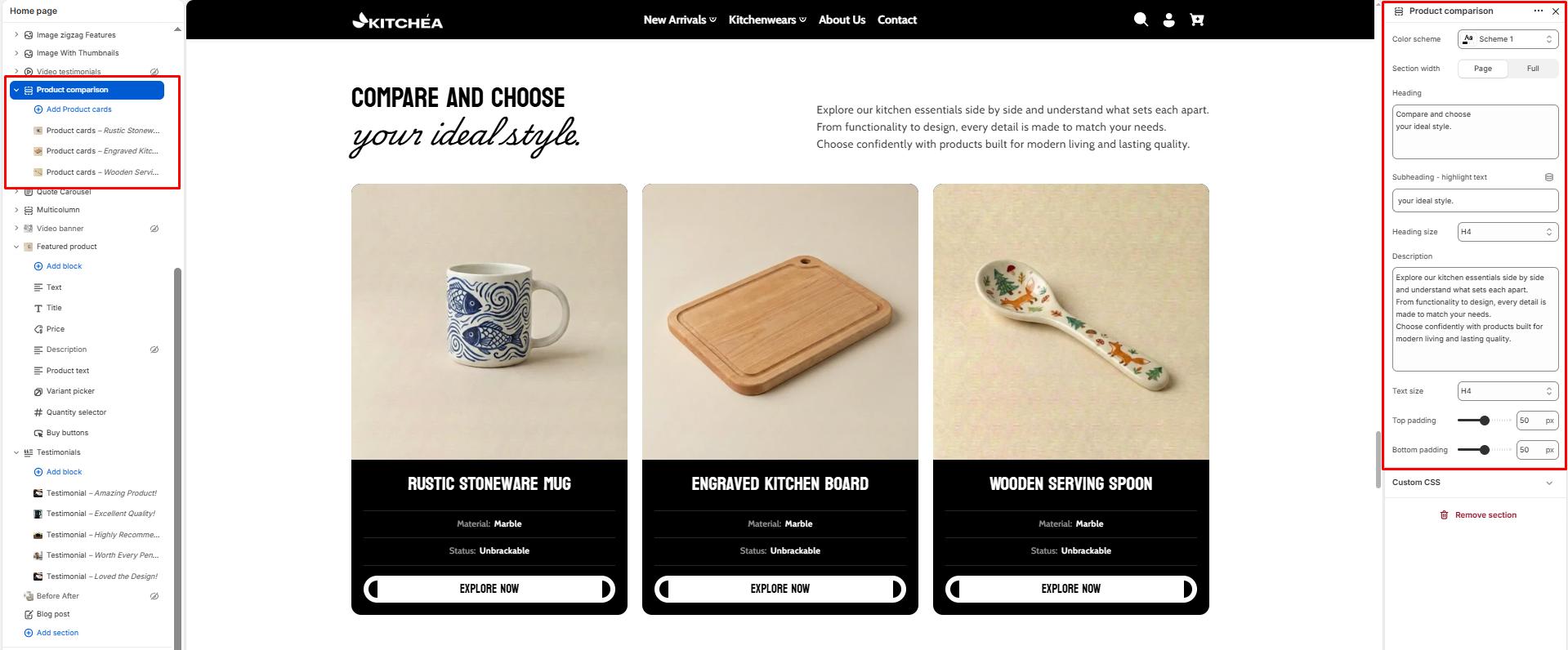
Color scheme
Select the color scheme from your theme’s available options to match your brand style.
Section width
-
- Page – aligns with the site’s content width.
- Full – stretches across the full viewport width.
Heading
Add a heading text for the section.
Subheading – Highlight Word
This word will be visually highlighted using the Subheading font style, adding a decorative touch to your blog section title.
Heading size
Choose heading size (H1–H6) for the section heading.
Text/Description
In the Text box, enter the description.
Text Size
Allows choosing Text hierarchy (e.g., H1 To H6).
Top padding
Adds space above the section (in pixels).
Bottom padding
Adds space below the section (in pixels).
Product cards
Product
Choose which product to display.
First row label
Enter the name of the first specification. Example: Material, Capacity, Weight.
First row value
Enter the value for the first specification. Example: Stainless Steel, 2 Liters, 500g.
Second row label
Enter the name of the second specification. Example: Coating, Handle Type, Compatibility.
Second row value
Enter the value for the second specification. Example: Non-stick, Ergonomic, Induction Ready.
Third row label
Enter the name of the third specification. Example: Warranty, Color, Size.
Third row value
Enter the value for the third specification. Example: 2 Years, Matte Black, 28cm.