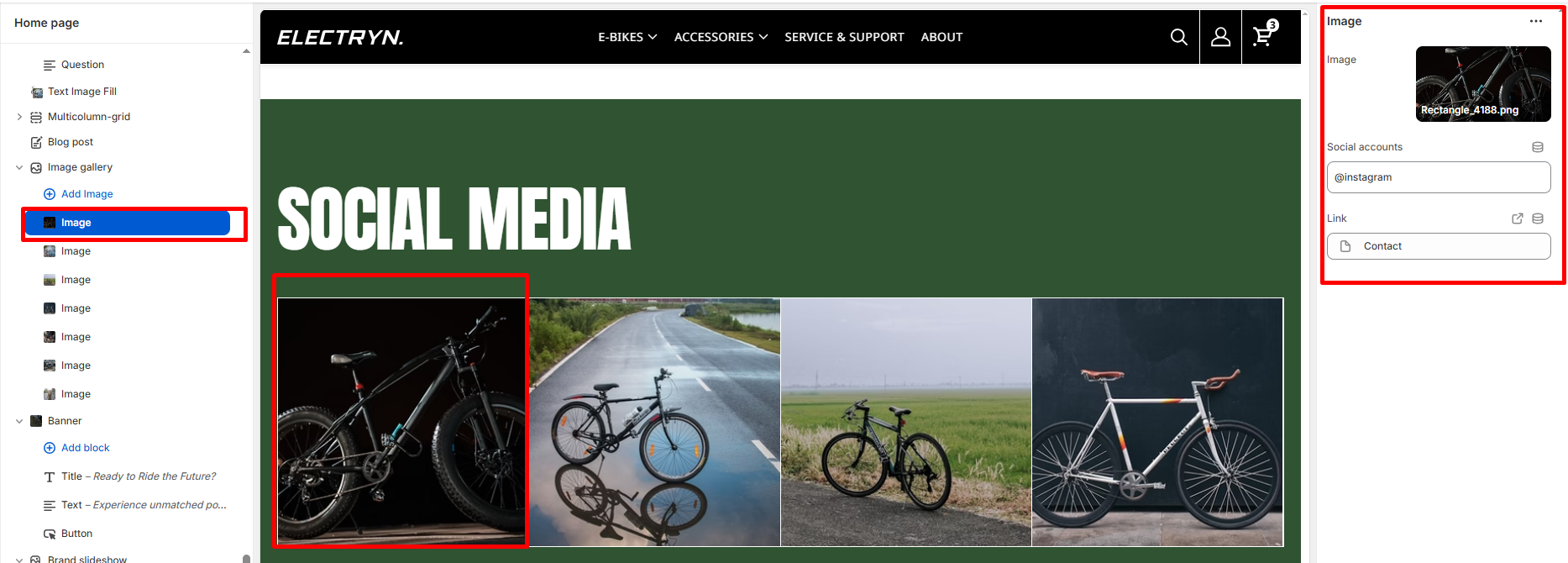
Image Gallery
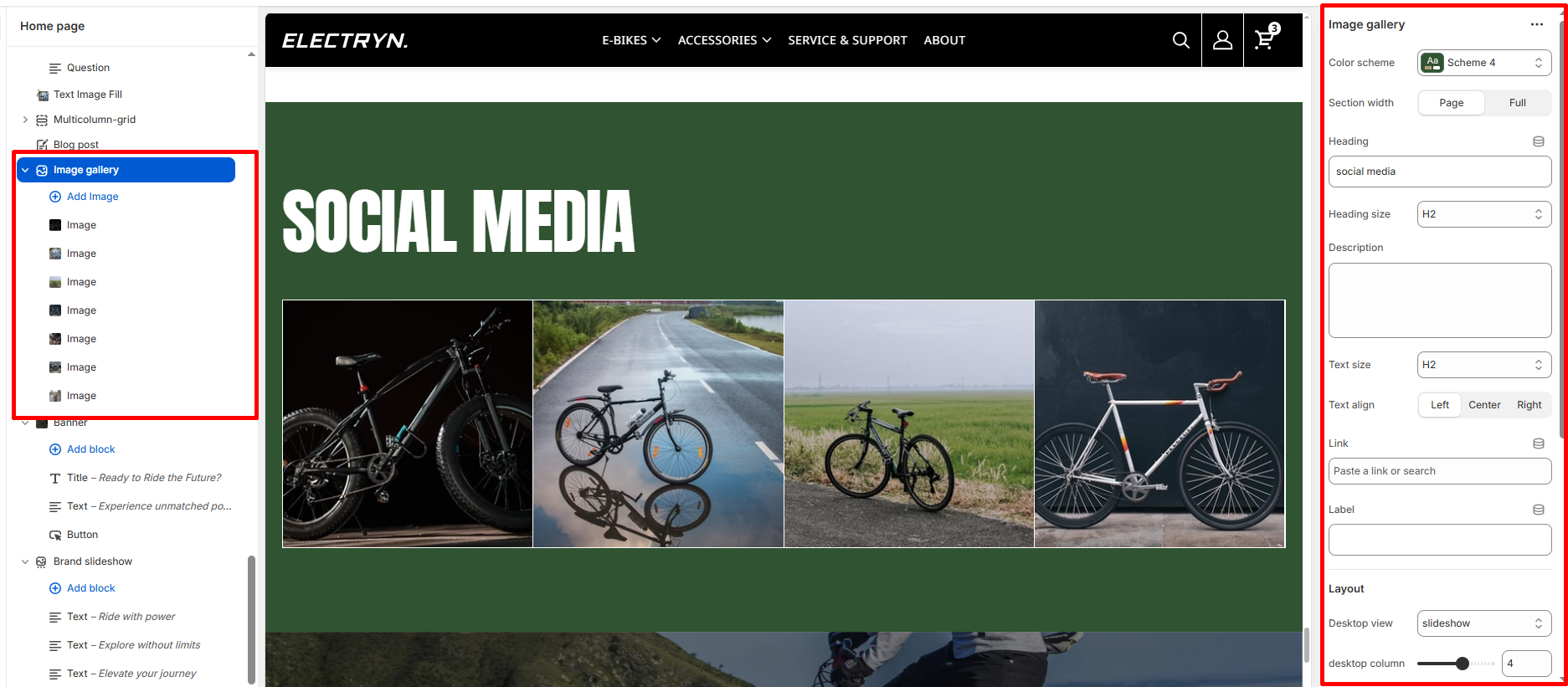
The Image Gallery section is designed to visually highlight your brand’s Instagram presence by featuring images, headlines, and a call-to-action (CTA). It’s a perfect place to showcase lifestyle imagery, community engagement, or social proof directly from your Instagram feed or curated media.
Color scheme
Select a predefined color scheme from your theme settings to style the section background and text.
Section width
-
- Page – aligns with the site’s content width.
- Full – stretches across the full viewport width.
Heading
Main title text displayed at the top of the section (e.g., “AT INSTAGRAM @ERICA”). Supports rich text formatting (bold, italic, underline).
Heading size
Controls the font size of the main heading. Options typically include H1, H2, H3, etc.
Text align
Aligns the heading text:
-
- Left
- Center
- Right
Link
Subheading or additional promotional text (e.g., “Follow us on Instagram @instagram”). Rich text supported.
Label
Text displayed on the CTA button (e.g., “Instagram”).
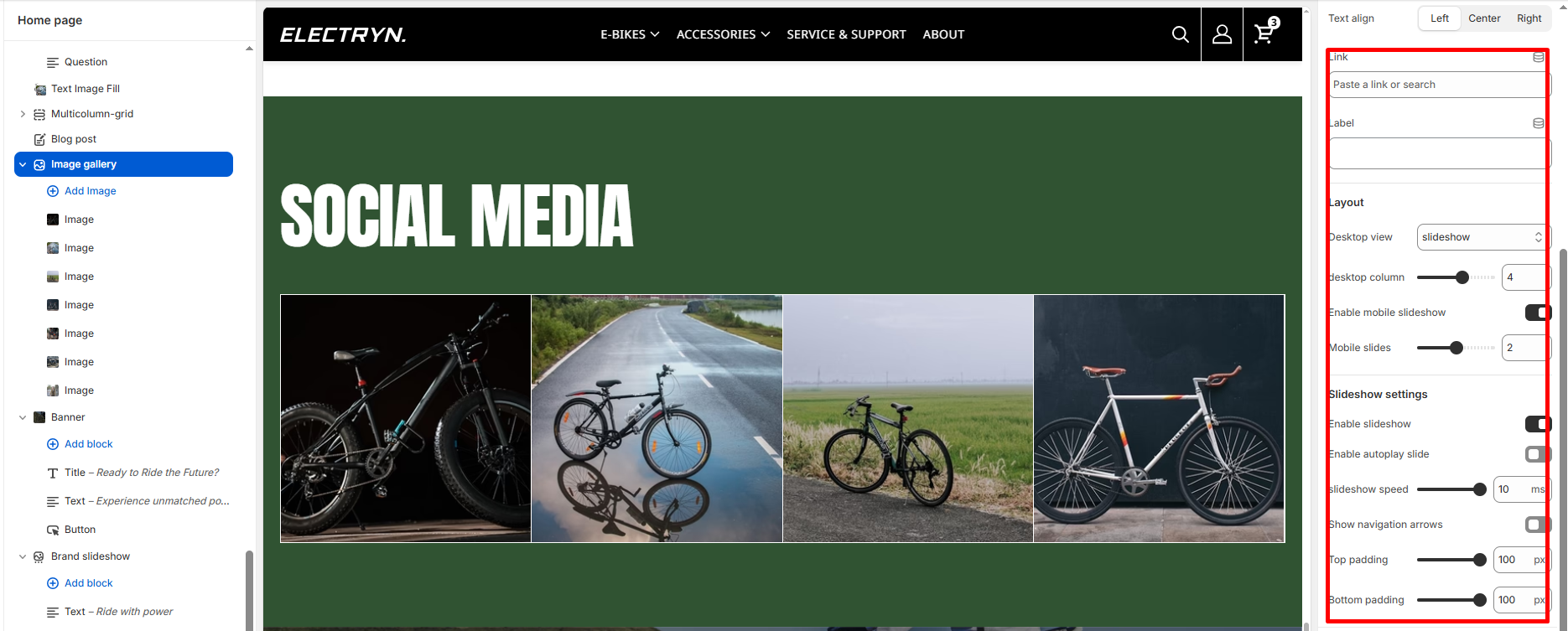
Layout
Desktop view
Choose layout style: Grid or Slider.
desktop column
Set how many card to display per row.
Mobile slides
Set how many card to display per row on smaller screens.
Slideshow settings
Enable autoplay slide
Enable or disable the slider functionality on desktop view.
slideshow speed
Define the transition speed between slides (in milliseconds).
Show navigation arrows
Display arrow controls for easy manual navigation, only use in mobile size.
Top padding
Adjusts spacing above the section (in pixels).
Bottom padding
Adjusts spacing below the section (in pixels).
Blocks – Image
-
- Image – Upload an image to display in the Instagram feed.
- Social accounts – Enter the Instagram account handle (e.g., @instagram).
- Link – Add a URL link for this image (e.g., link to Instagram post or profile).