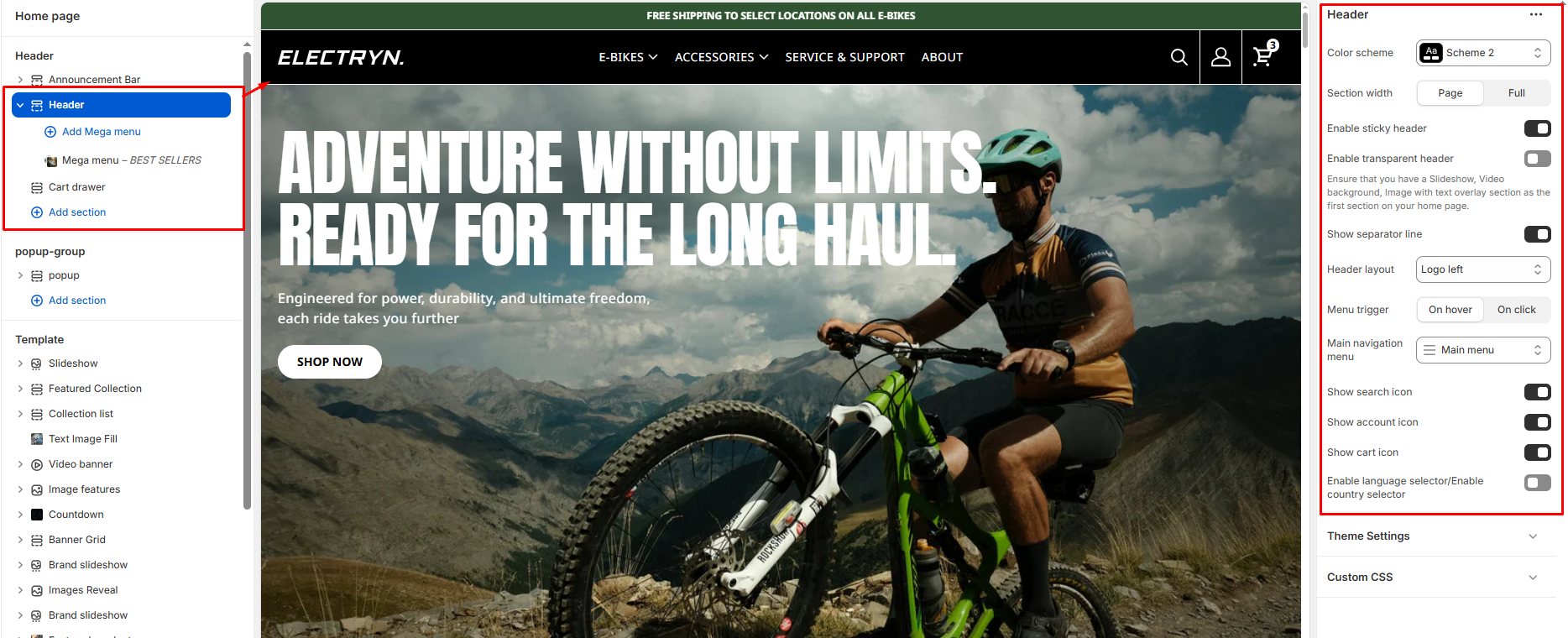
Header
Open the Theme Editor, and in the Header Group open the Header section.
Color scheme
Select the color scheme to control text, background, and icon colors. This helps the header blend with or contrast your store’s design.
Section width
Choose how wide the header spans on the page:
-
- Page – aligns with the site’s content width.
- Full – stretches across the full viewport width.
Enable sticky header
Keeps the header visible at the top while scrolling, ensuring navigation and cart access remain always available.
Enable Separate Line
You can also enable a separator line between the header and other sections below.
Enable transparent header
Makes the header background transparent, typically used over hero banners or slideshows.
Tip: Ensure the first homepage section is a banner or slideshow for best appearance.
Menu
Click the Select menu to connect a menu (assembled in the Navigation admin).
Header Layout
-
- Logo left, navigation inline
- Logo left, navigation center
- Logo center, navigation inline
- Logo left, navigation below
Menu trigger
-
- On click: Customers must click a menu item to expand the dropdown. If the item has a link, clicking again will navigate to that page.
- On hover: The dropdown opens when customers hover over a menu item.
Show search icon
Displays a magnifying glass icon allowing customers to search your store directly from the header.
Show account icon
Shows the customer account icon, giving quick access to login, register, or account pages.
Show cart icon
Enables the cart icon in the header, allowing customers to view or open their cart drawer.
Enable language selector/Enable country selector
Enables the language and country in the header.
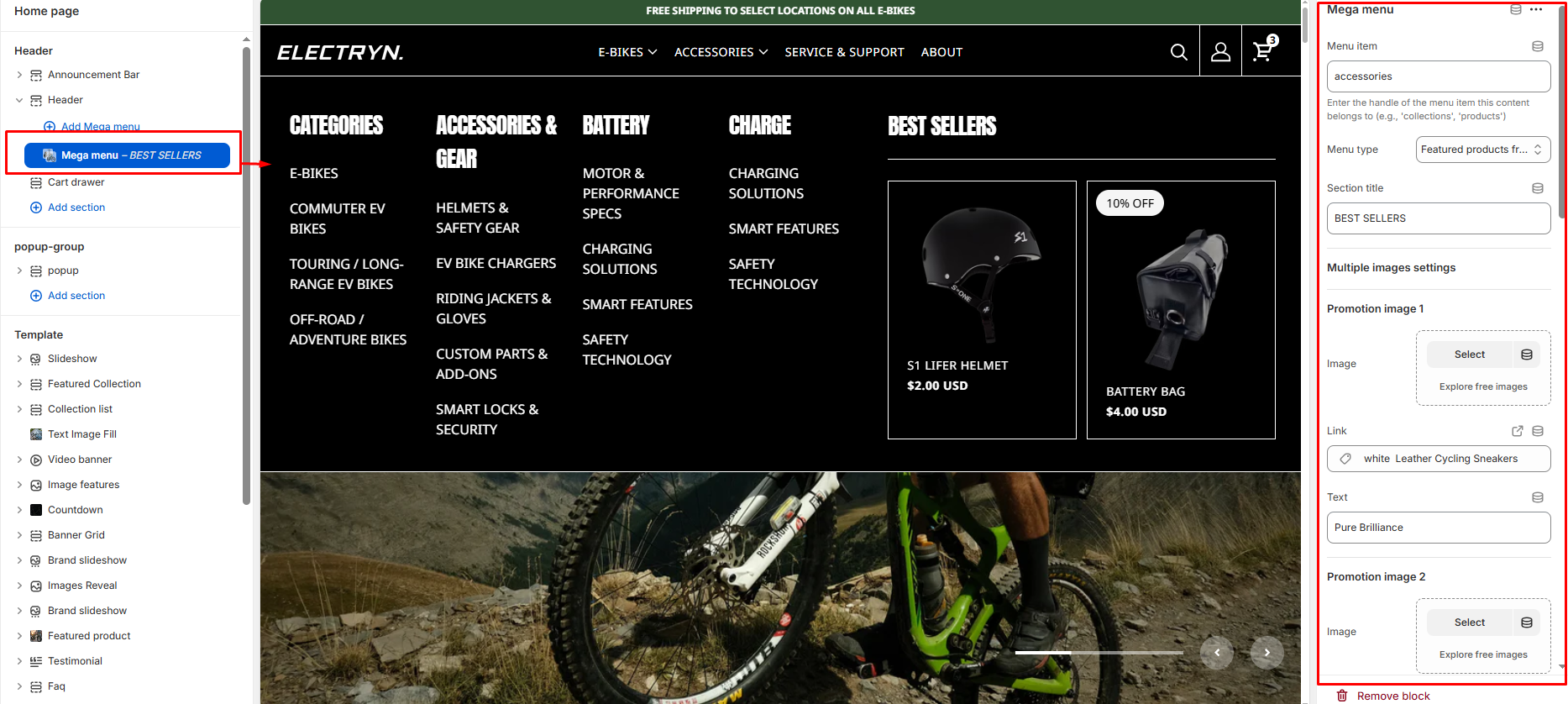
Mega Menu Block
The Mega Menu Block is designed to create an expanded navigation menu with additional content and promotional content. It includes the following settings:
Menu item
Enter the handle (name) of the top-level menu item that this mega menu belongs to (e.g., e-bikes, accessories). This links the block to its corresponding navigation item.
Menu type
Choose the layout style for this mega menu. Available types include:
-
- Multiple images with links
- Multiple page links
- Featured products from collection
- Multiple collections
- Blog posts
- Custom content
Section title
Optional title text displayed at the top of the mega menu for visual grouping or branding.
Multiple Images Settings
Use this section to display images with titles and links inside the mega menu — ideal for promoting featured products or categories.
Image 1 / Image 2 / Image 3 / Image 4
Upload up to four images that appear in the mega menu.
Link 1 / Link 2 / Link 3 / Link 4
Add a URL or choose a page, collection, or product to link each image.
Text 1 / Text 2 / Text 3 / Text 4
Add captions or titles that appear as overlays on each image.
Multiple Pages Settings
Display quick links to selected pages within the dropdown.
Promotion page 1–4
Select up to four pages to feature. Useful for linking to About, Contact, FAQs, or Policy pages.
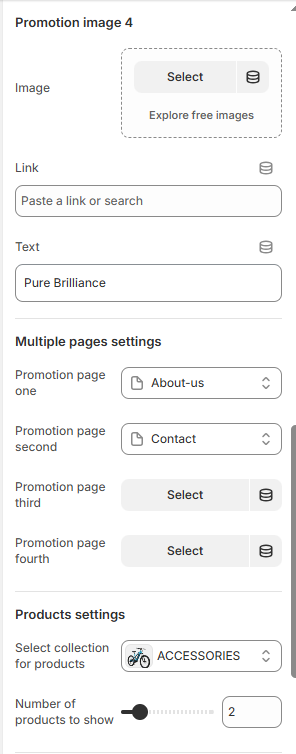
Products Settings
Feature specific products directly inside the mega menu.
Select collection for products
Choose a collection whose products will be shown in this mega menu.
Number of products to show
Select how many products (from the chosen collection) to display. Adjustable via slider.
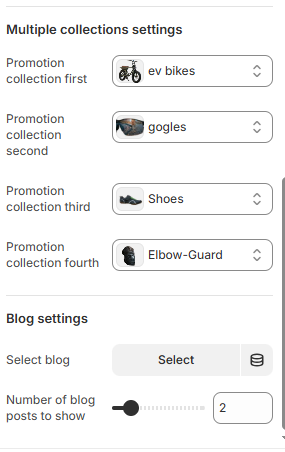
Multiple Collections Settings
Use this area to promote entire collections within your mega menu.
Promotion collection 1–4
Select up to four different collections to feature. Each appears with its name and thumbnail (if available).
Blog Settings
Feature recent or popular blog posts directly in the mega menu to highlight content and drive engagement.
Blog
Choose which blog (e.g., “News,” “Journal”) to display posts from.
Number of blog posts to show
Set how many recent posts to display from the selected blog.